


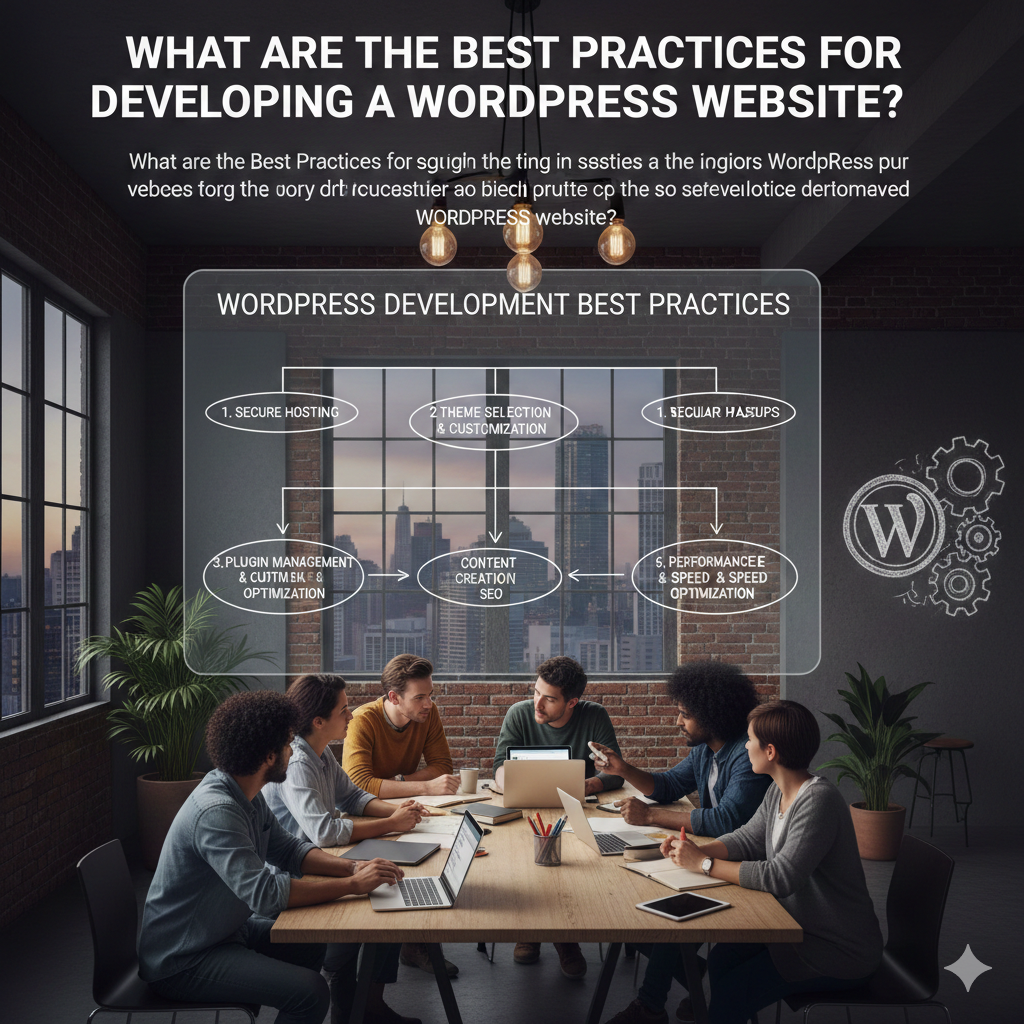
What Are the Best Practices for Developing a WordPress Website?
WordPress powers over 40% of the web, making it a highly versatile and powerful platform. However, to build a site that is fast, secure, and scalable, you need to follow core best practices. This guide breaks down the essential steps for every stage of your WordPress development journey.
1. Planning and Setup: Starting Strong
Before writing a single line of code, robust planning saves countless hours later.
-
Choose the Right Hosting: For performance and scalability, opt for managed WordPress hosting (e.g., Kinsta, WP Engine) or high-quality VPS solutions (e.g., DigitalOcean, Vultr). Avoid cheap, shared hosting for serious projects.
-
Use a Staging Environment: Never develop or test directly on your live (Production) site. Always use a dedicated Staging or Development environment to test themes, plugins, and code changes before deployment.
-
Version Control with Git: Treat your WordPress site like any professional software project. Use Git (and platforms like GitHub or GitLab) to track all theme and plugin code changes, enabling easy collaboration and quick rollbacks if an issue arises.
-
Set Up Local Development: Use tools like Local by Flywheel or DevKinsta to develop locally on your machine. This dramatically speeds up development time compared to constantly uploading files to a remote server.
2. Performance and Optimization: Speed is Key
Website speed is critical for SEO and user experience. Optimization must be built in from day one.
-
Implement Caching: Use a reliable caching solution (e.g., WP Rocket, LiteSpeed Cache) to serve static HTML pages instead of dynamically processing PHP for every visitor. Combine this with server-side object caching (Redis or Memcached) to speed up database queries.
-
Optimize Images: Compress and resize images before uploading them. Use next-generation formats like WebP. Tools like Smush or Imagify can automate optimization upon upload.
-
Minimize CSS and JavaScript: Use minification and concatenation tools (often built into caching plugins) to reduce file sizes and the number of HTTP requests the browser needs to make.
-
Database Hygiene: Regularly clean up the database by removing orphaned post metadata, unnecessary transients, and old revisions. Tools like WP-Optimize can help automate this.
3. Theme Development: Build vs. Buy
The debate between custom themes and page builders is ongoing. Here’s how to approach both responsibly:
-
Custom Theme Development: Start with a lightweight starter theme (e.g., Underscores, Timber/Twig) or a clean theme like GeneratePress or Kadence. Develop with clean, standards-compliant HTML, CSS, and PHP.
-
Adopt Block Editor (Gutenberg): Focus on building custom blocks rather than relying solely on page builders. The native Block Editor is faster, SEO-friendly, and aligns with the future direction of WordPress.
-
Child Themes are Mandatory: If you use a third-party theme, always create a Child Theme for any customizations (CSS, functions). This ensures your changes are never overwritten when the parent theme is updated.
-
Avoid Bloat: Choose themes and plugins based on performance, not just features. A bulky theme or a single bad plugin can tank your site’s speed.
4. Security Practices: Stay Ahead of Threats
Security is not a feature; it’s a foundation.
-
Strong Authentication: Use unique, strong passwords and enable Two-Factor Authentication (2FA) for all admin users.
-
Limit Login Attempts: Use a security plugin (e.g., Wordfence, Sucuri) to prevent brute-force attacks by limiting the number of failed login attempts.
-
Regular Updates: Keep WordPress core, themes, and all plugins updated to the latest versions. Updates often contain critical security patches.
-
Principle of Least Privilege: Use separate user accounts with the minimum necessary permissions (e.g., don’t give “Editor” roles “Administrator” capabilities).
-
Hardening: Implement basic file-level security measures, such as disabling file editing within the WordPress dashboard and protecting the
wp-config.phpfile.
5. Plugin Management: The Right Tool for the Job
Plugins are the power of WordPress, but they are also the biggest source of conflicts and security risks.
-
Prioritize Quality: Only download plugins from the WordPress Repository or reputable developers. Check the plugin’s last update date, active install count, and user reviews.
-
Limit Quantity: Install only the plugins you absolutely need. The fewer plugins, the lower the risk of conflicts and performance degradation.
-
Evaluate Conflicts: After installing a new plugin, test key functionality immediately in the staging environment to ensure it doesn’t conflict with existing themes or plugins.
-
Remove Unused Plugins: Deactivate and delete any plugins you are not actively using.

Leave a Reply